Ubuntu Desktop System Restore Point (Backup & Restore) Using Systemback Application (Step by Step)
sudo add-apt-repository ppa:nemh/systemback
sudo apt-get updatesudo apt-get install systembackor$ sudo add-apt-repository "deb http://ppa.launchpad.net/nemh/systemback/ubuntu xenial main"$ sudo apt-key adv --keyserver keyserver.ubuntu.com --recv-keys 382003C2C8B7B4AB813E915B14E4942973C62A1B$ sudo apt update$ sudo apt install systembackSystemback Usage in Ubuntu Desktop
Once installed, Launch Systemback either from Menu or Unity launcher.
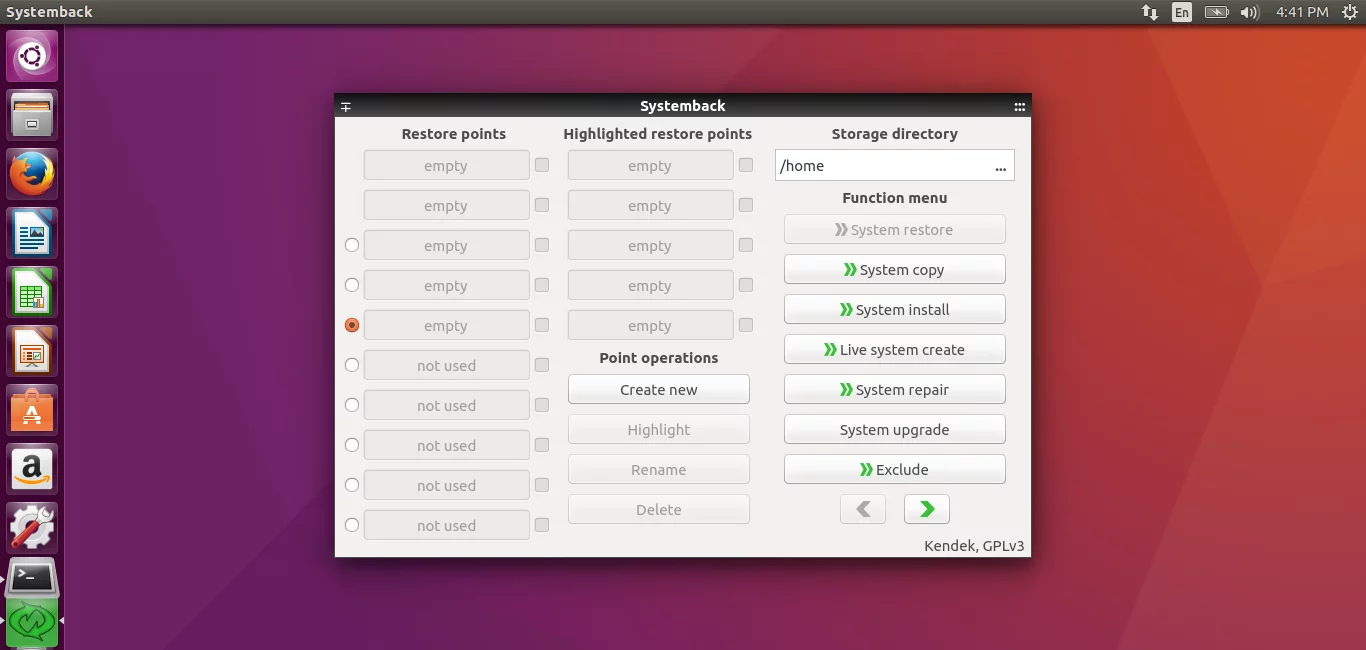
The default interface should look like below.
As you see in the above screenshot, there are five sections namely,
- Restored points - List of available restore points
- Highly restore points
- Point operations - Create, hightlight, rename or delete restore points
- Storage directory - The location of saved restore points
- Function menu - This menu contains the main options such as System copy, restore, install, live system create, system repair, system upgrade, exclude, include, Schedule, and Settings etc.
Creating System Restore Points
At first launch, there is no restore points. So, let us create our first restore point. You can create any number of restore points either manually or automatically.
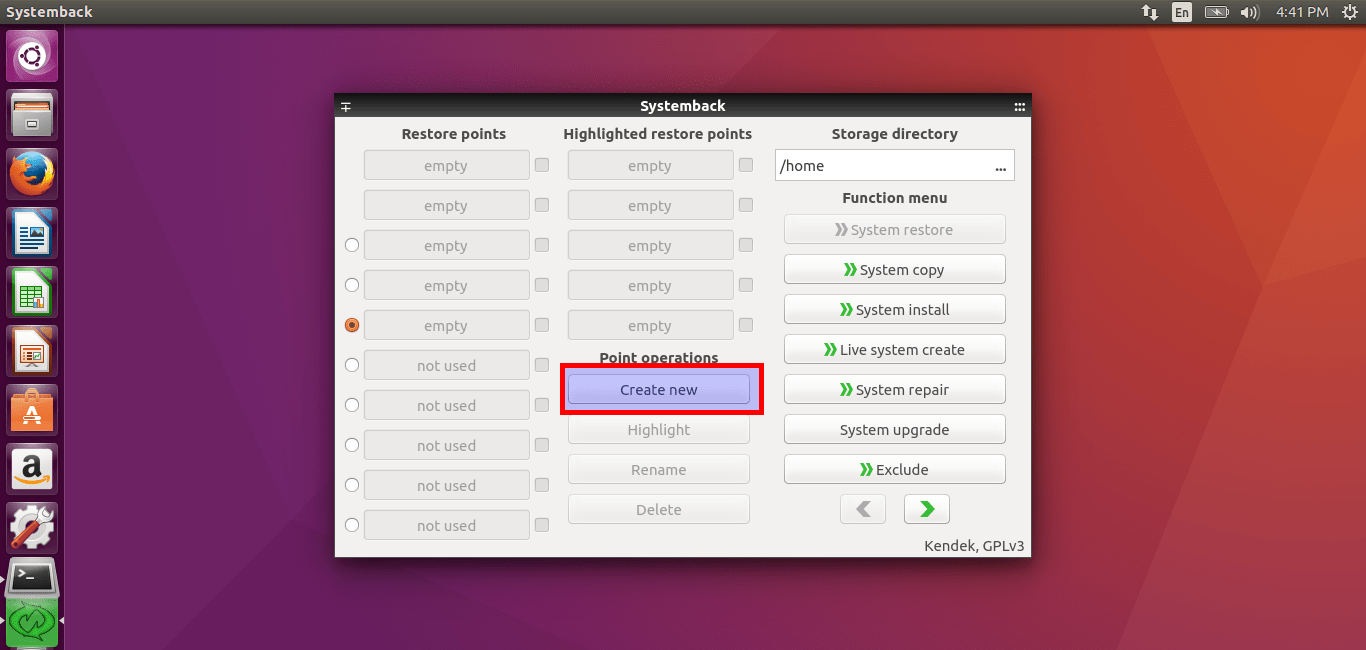
To do so, click Create New button under Point operations section.
Create Restore Point Using Systemback
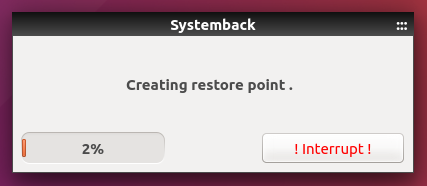
Now, Systemback will start to create the first restore point.
Creating system restore points using Systemback
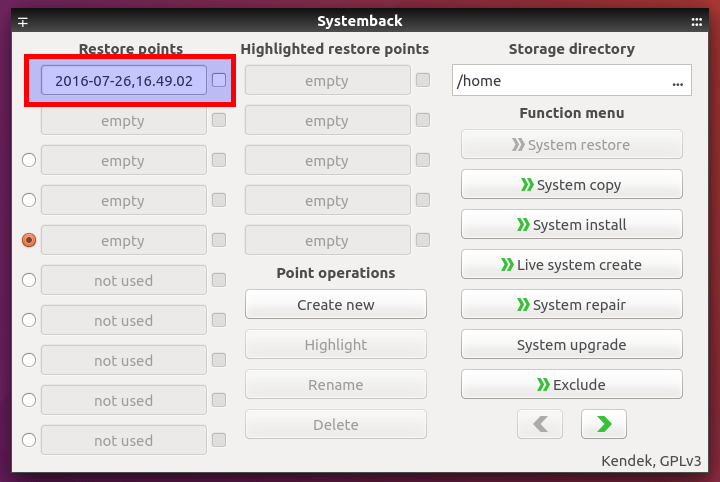
Once restore point creation completed, It will be displayed in the main interface under Restore points section.
View restore points in Systemback interface
The newly created restore points will be stored under /home directory by default. You can change this location from Storage directory section. Make sure you have enough free space in the storage directory (i.e /home directory).
Restore Ubuntu Desktop To Previous State Using Systemback
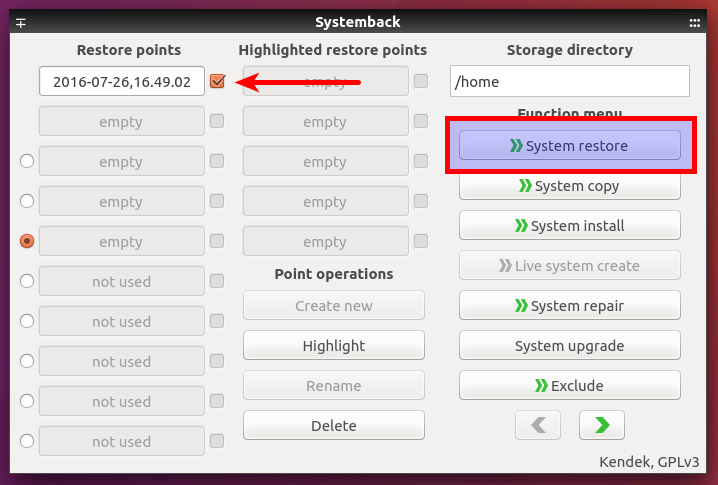
To restore your Ubuntu system, select the restore point of your choice and click System restore option found under Function menu.
Choose restore point in Systemback interface
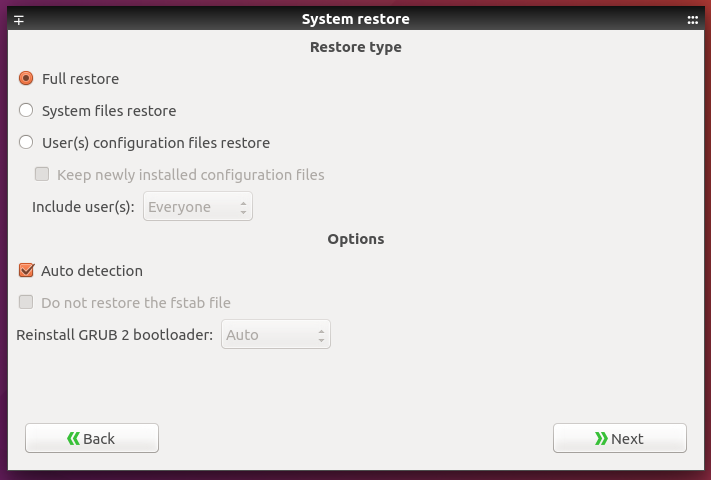
In the next window, select whether you want to do full system restore or just the System files restore. Also, you can choose whether you want to restore user(s) configuration files.
I wanted to to do full restore, so I selected the first option.
Restore Ubuntu Desktop To Previous State Using Systemback
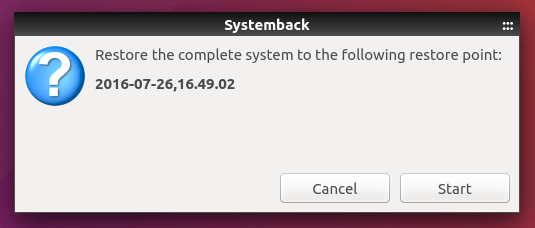
Finally, click Start.
Start system restore using Systemback
That's it. Your system will be restored to the selected restore point.
Create Live System as ISO
This is another useful option. You can create the entire the system as live bootable ISO and write the ISO to DVD or USB drive.
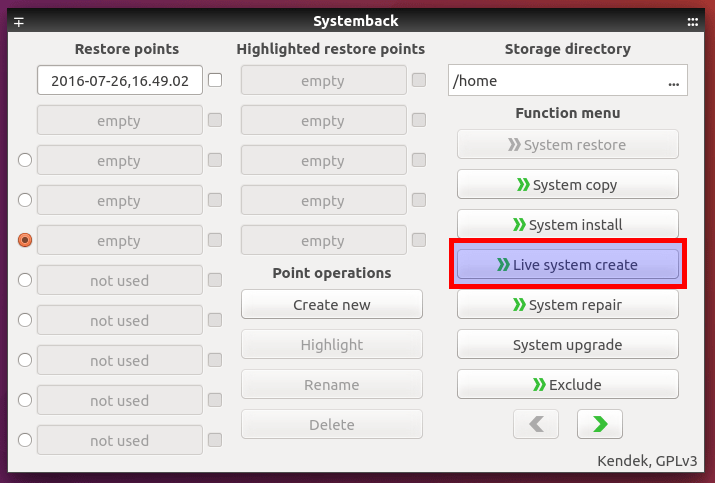
Click Live system create button.
Choose Live system create option in Systemback interface
Choose the location where you want to store the ISO file. Finally, click Create New button.
Create live system as ISO using Systemback
Also, you can include the user data files in the ISO by selecting the checkbox that reads Include the user data files.
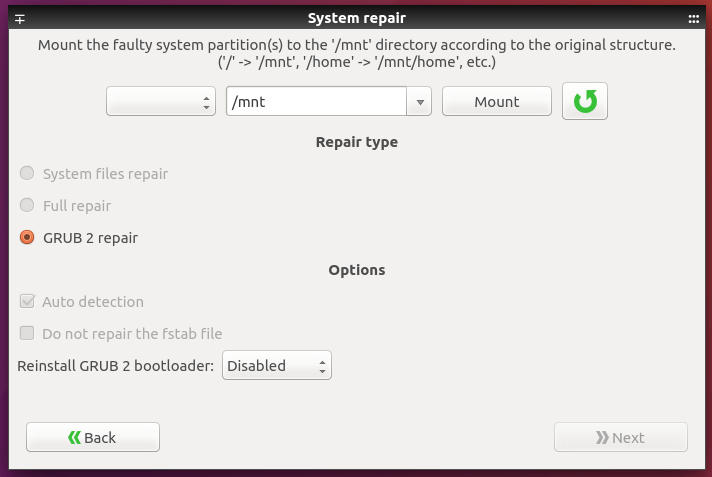
System Repair
This option helps you to fix any errors in the GRUB and fstab files.
System repair using Systemback
System Upgrade
Want to upgrade your Ubuntu system to the most recent version? That's also possible. Just click on the System upgrade option.
Systemback will upgrade your system automatically.
Ubuntu system upgrade using Systemback
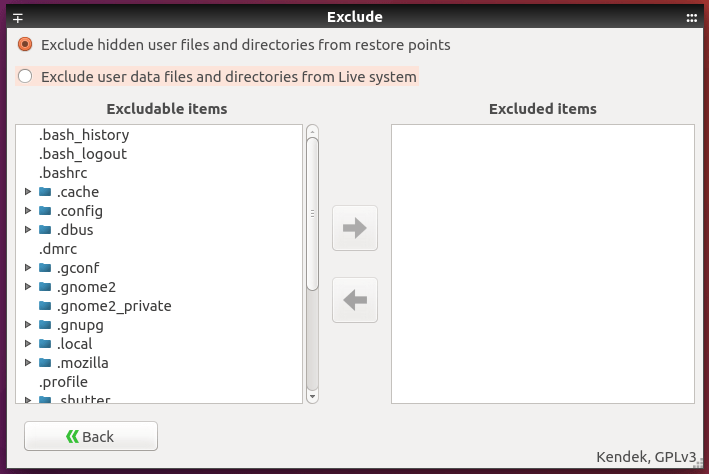
Exclude
Using this section, you can exclude some files and folders from restore points.
Exclude files and folders from restore points
https://ostechnix.com/systemback-restore-ubuntu-desktop-and-server-to-previous-state/



No comments:
Post a Comment